
Control your computer with Google Assistant
You can use the Google Assistant to control your home electronics, read the newspaper and see the weather forecast, so why not use it to control your computer. Now we will write a tool to do that.
The client on the Mac consumes messages and executes actions on the Mac
Create a custom voice command for Google Assistant using IFTTT, post the message to the newly created API
The work is also quite simple, just have to use up to 3 services only: IFTTT, Integromat and Google Assistant.
Once you have a CloudAMQP account, you access Create New Instance and create a new instance, just follow the instructions on the page sequentially.
Once created, go back to the Instances page to see the instance just created, click on edit to see the details of the instance, save the AMQP URL, we will need it to connect. You can also click on “RabbitMQ Manager” to go to the RabbitMQ management page and take a look at it.
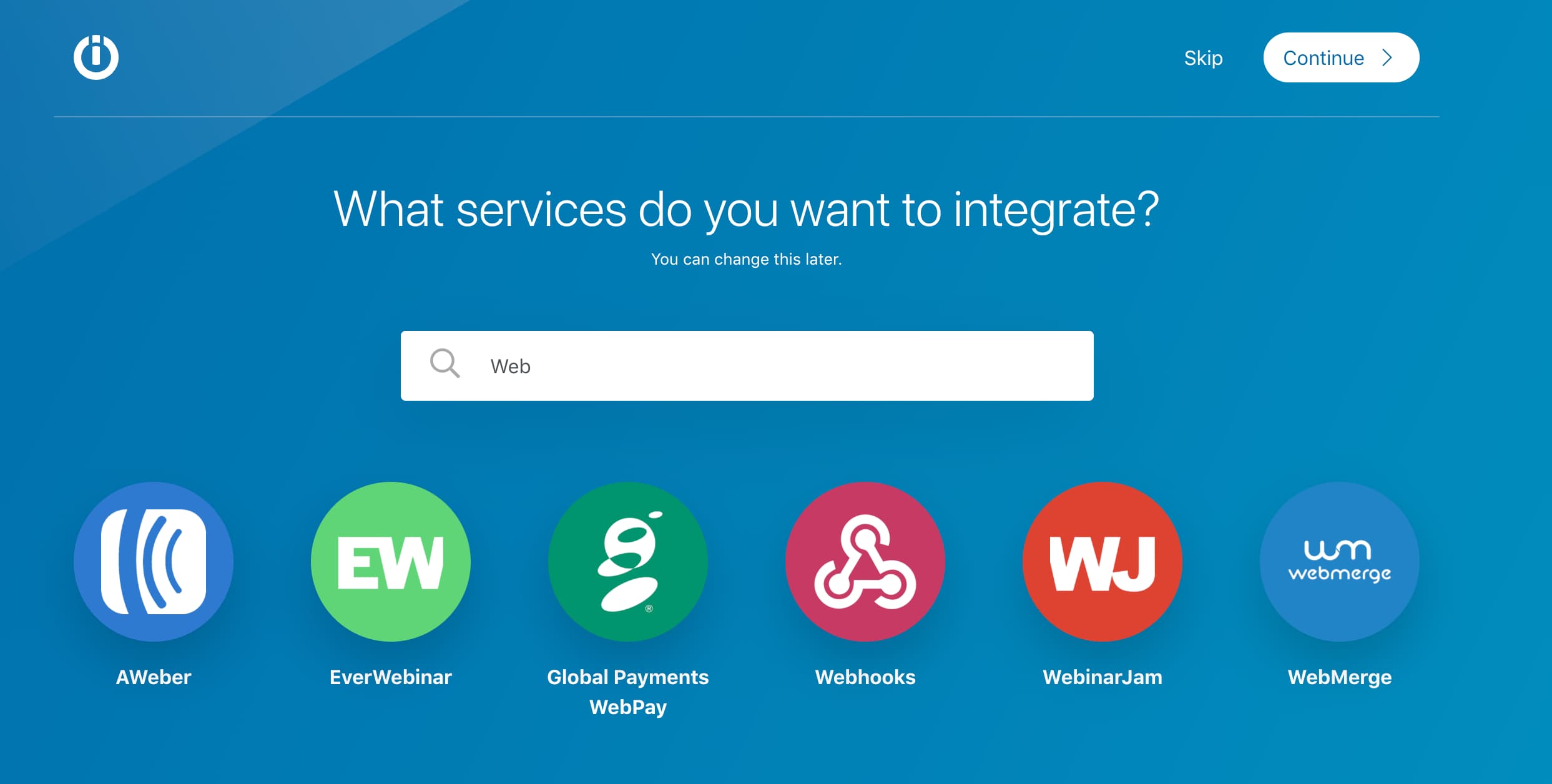
You need to register an account at integromat.com. Then go to the Create scenario page to create a new scenario. Type in the webhook search box and click on the Webhook item.
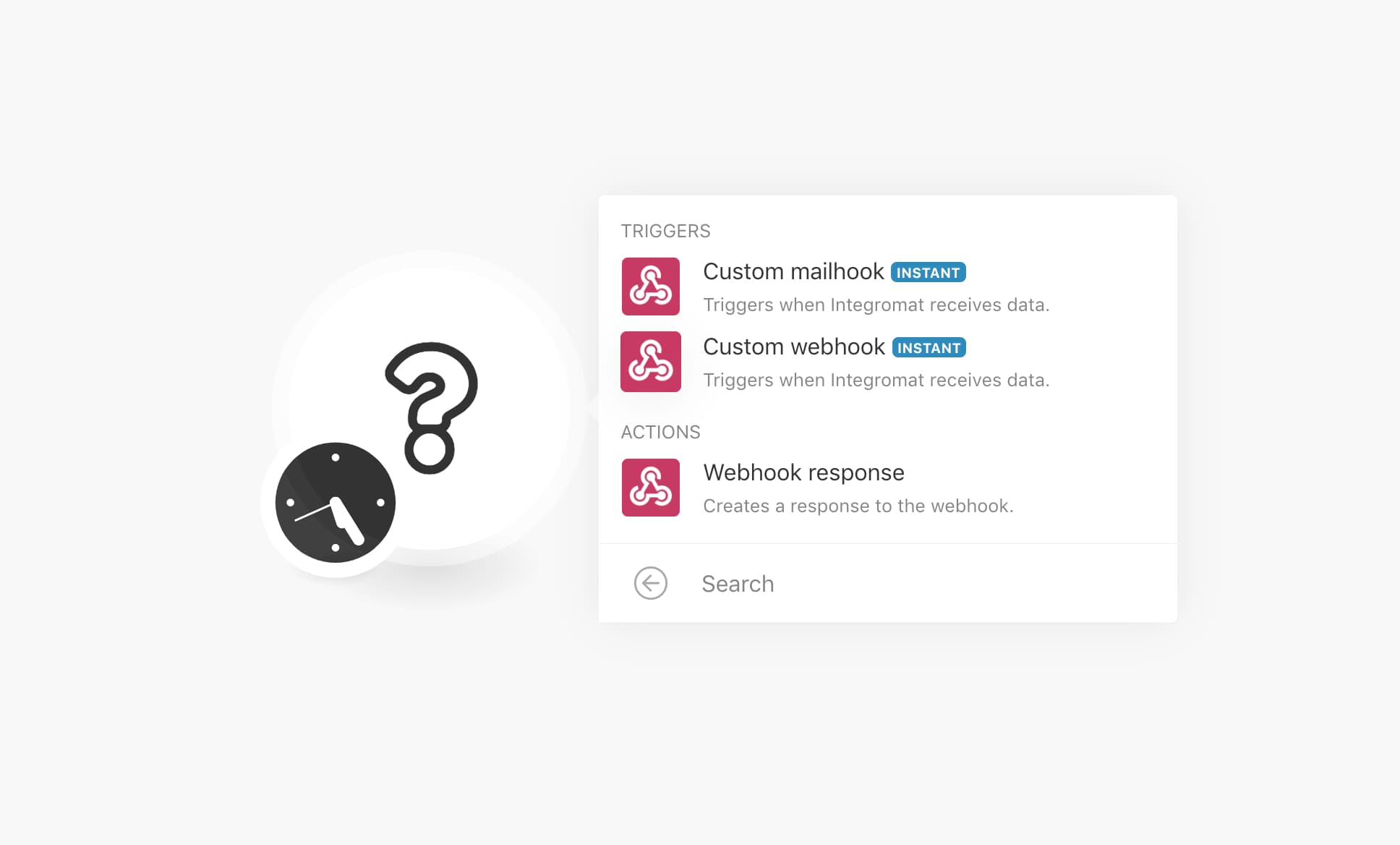
Then choose: custom webhook
Through this article, we hope to bring back the memories of Ms. Rabbit Ngoc back to the tired and heavy months when we see this bug everywhere.
Summary
Create API handle request and put message into RabbitMQThe client on the Mac consumes messages and executes actions on the Mac
Create a custom voice command for Google Assistant using IFTTT, post the message to the newly created API
The work is also quite simple, just have to use up to 3 services only: IFTTT, Integromat and Google Assistant.
Sign up for RabbitMQ
RabbitMQ is an open source message-broker. You can install it on a private server or use CloudAMQP's cloud service. Fortunately, the application we are working on does not require much, so you can use the free plan of CloudAMQP.Once you have a CloudAMQP account, you access Create New Instance and create a new instance, just follow the instructions on the page sequentially.
Once created, go back to the Instances page to see the instance just created, click on edit to see the details of the instance, save the AMQP URL, we will need it to connect. You can also click on “RabbitMQ Manager” to go to the RabbitMQ management page and take a look at it.
Receive the request
Now you need to have somewhere to receive the request and transfer the message to RabbitMQ. There are many ways to do this, you can write a server or use a third-party service, which is Integromat. It is quite similar to IFTTT, but has support for transferring data from webhooks to RabbitMQ.You need to register an account at integromat.com. Then go to the Create scenario page to create a new scenario. Type in the webhook search box and click on the Webhook item.
Then choose: custom webhook
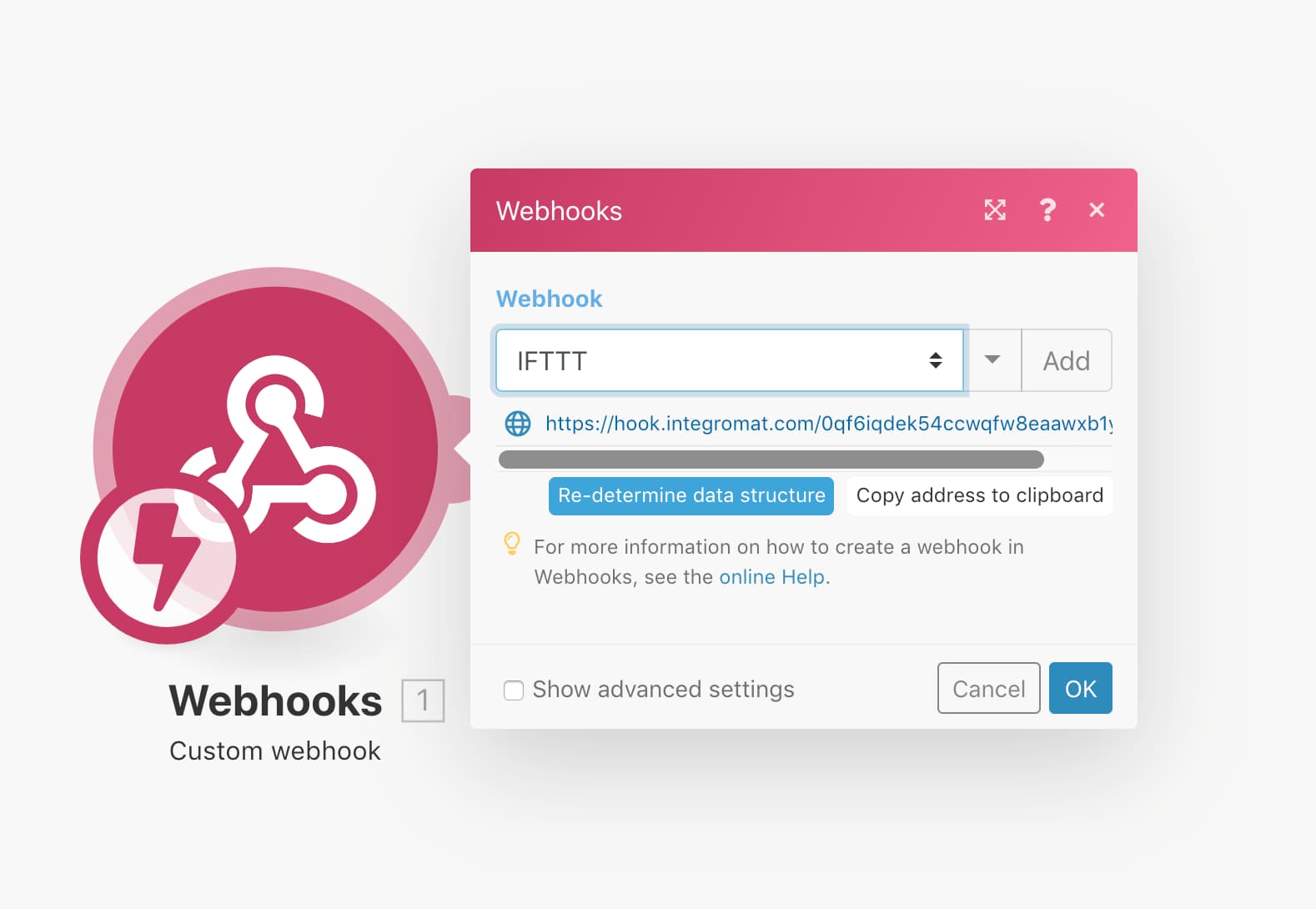
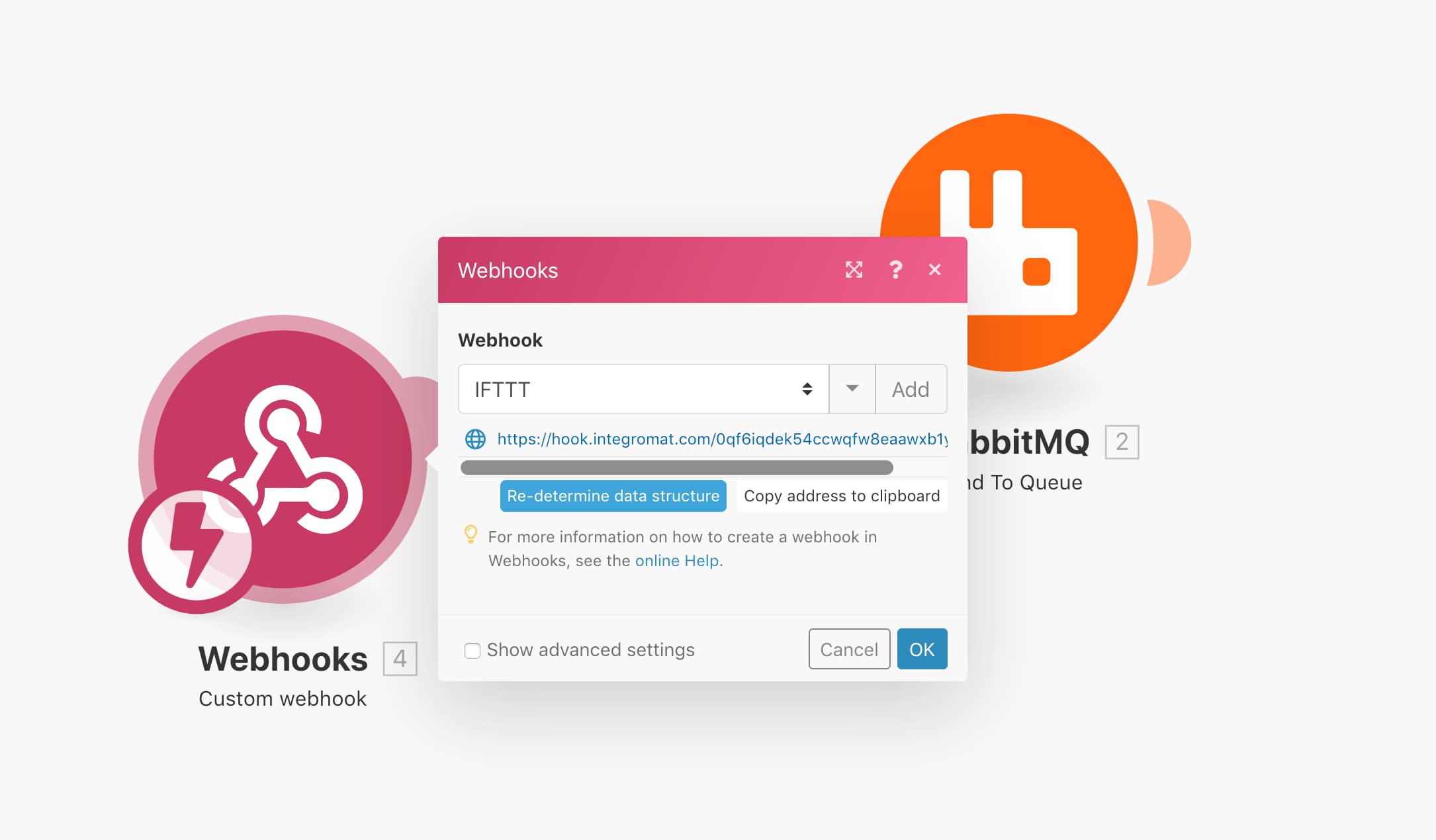
Press the add button and enter the name of the webhook, this name is just to remind. Finally you will get the url to post data to:
Note this link, we will use it when creating applets inside IFTTT.
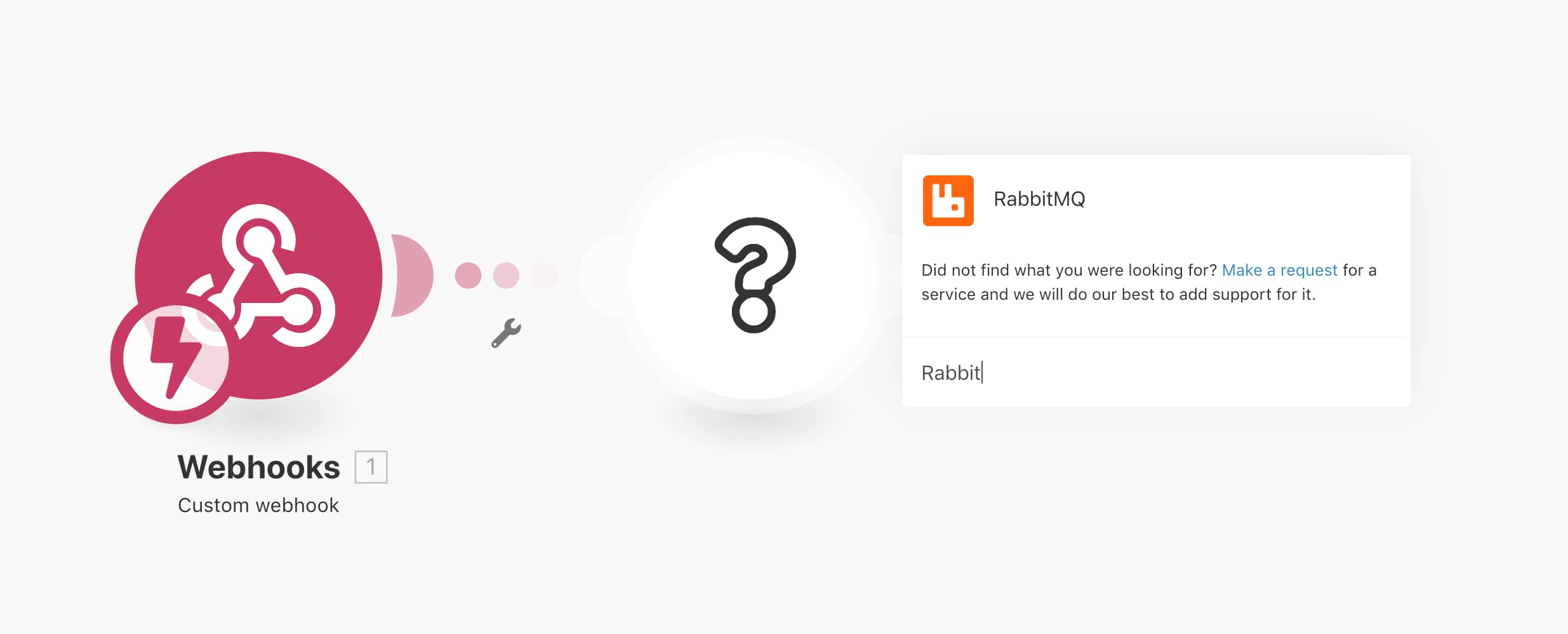
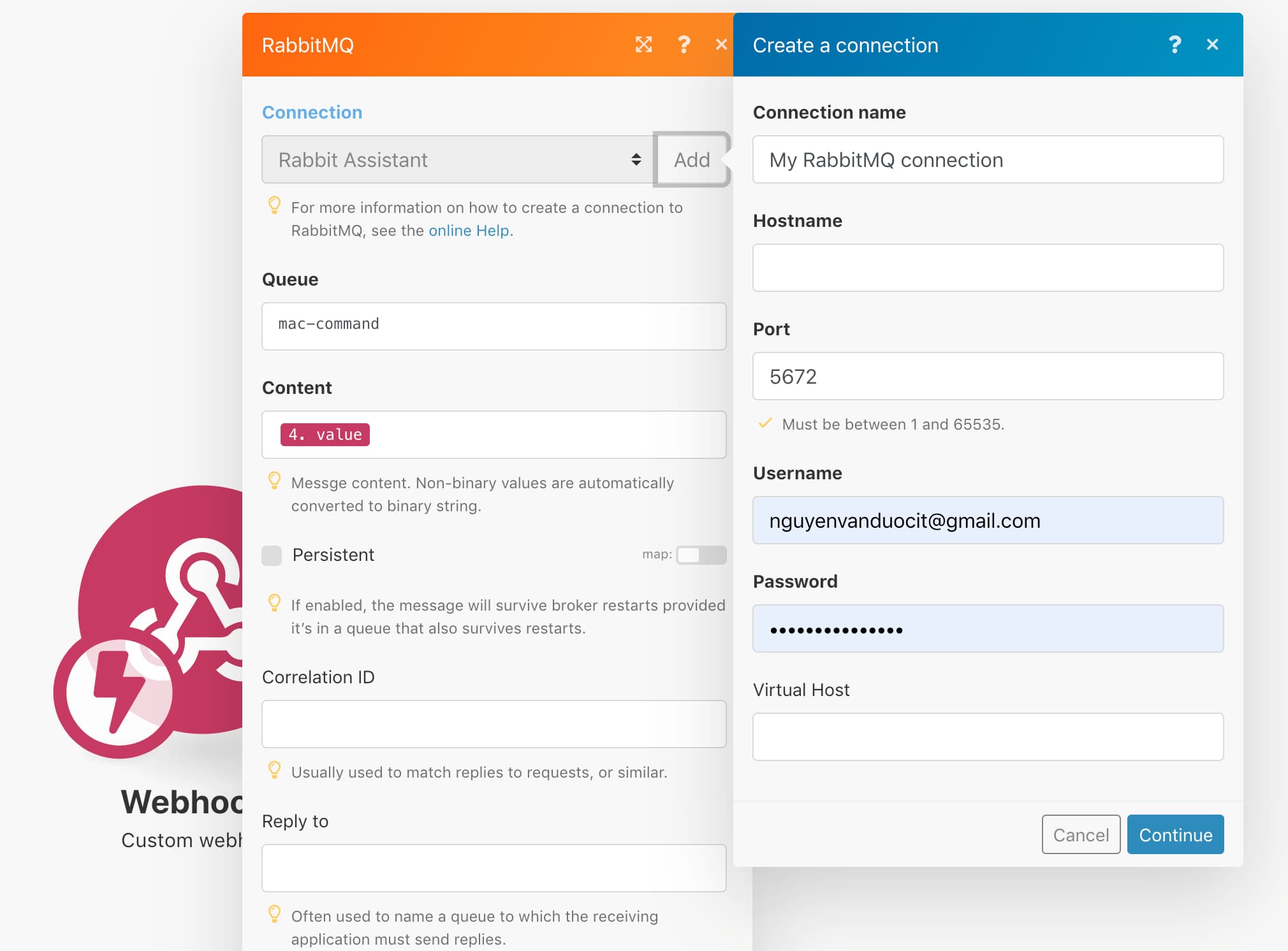
Click the plus sign next to the webhook module to add the RabbitMQ module, and select send to queue:
Enter the information you got from the details of the RabbitMQ instance we created earlier.
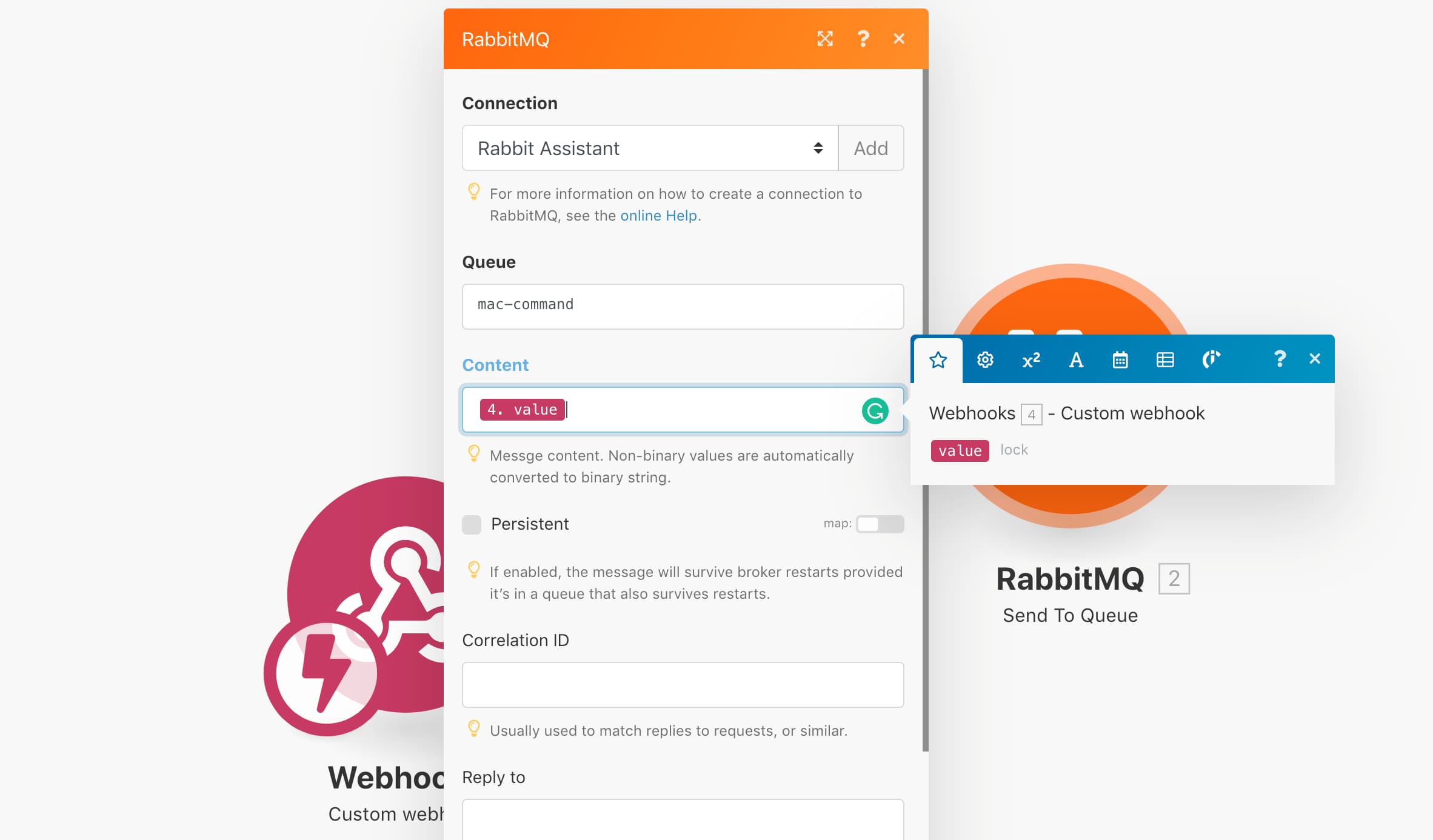
You still cannot fill the field content, if you want to enter this, Integromat must detect the database structure that you will send. If you want to do this, you have to create an applet in IFTTT first. We will come back to this step later.
Create Custom Voice Command For Google Assistant With IFTTT
Google Assistant does not support custom commands, but must be integrated through IFTTT's service. So you need to have an IFTTT account, link it to your Google account, and create an applet like this:
To access the applet creation page, Click create an applet handle event from Google Assistant to the webhook:
In the Google Assistant
What do you want to say ?: lock my mac
What do you want the Assistant to say in response ?: I'm locking your mac
In the Make a web request section:
- URL: is the url you get inside Integromat
- Method: POST
- Content Type (optional): text / plain
- Body (optional): lock
Now go back to Integromat, edit scenario, select webhook module and click on determine data struct, open Google Assistant and say “lock my mac”. Now Google Assistant will request to IFTTT, and IFTTT will post the lock to Integromat's webhook. The Integromat will detect data struct.
Then select the RabbitMQ module, in the content section, select the value:
At this stage, when you issue an order on Google Assistant, a message will be sent to RabbitMQ. Next we will write a tool on the Mac to consume these messages and execute the corresponding commands on the mac.
Rabbit Assistant
The name RabbitMQ reminds me of the day when Jade Rabbit got up and got more and more skinned, so I named this project Rabbit Rabbit. Anyway, nowadays, Ms. Rabbit Ngoc often tells stories of late at night, but instead of potatoes, sweet potatoes, advertising toys everyday.
To make it easier to understand, I will just say the main parts of this code, You can use the cobra to help make it more convenient or write more deamons to run the program as a service - this is important, I will say in another post.
func main() {
 conn, err := amqp.Dial("amqp url")
 util.FatalIfError(err, "Failed to connect to RabbitMQ")
 defer conn.Close()

 ch, err := conn.Channel()
 util.FatalIfError(err, "Failed to open a channel")
 defer ch.Close()

 q, err := ch.QueueDeclare(
  "mac-command", // name
  false,   // durable
  false,   // delete when unused
  false,   // exclusive
  false,   // no-wait
  nil,     // arguments
 )
 util.FatalIfError(err, "Failed to declare a queue")

 msgs, err := ch.Consume(
  q.Name, // queue
  "",     // consumer
  true,   // auto-ack
  false,  // exclusive
  false,  // no-local
  false,  // no-wait
  nil,    // args
 )
 util.FatalIfError(err, "Failed to register a consumer")

 forever := make(chan bool)

 go func() {
  for msg := range msgs {
   body := string(msg.Body)
   notify(body)
   handleMessage(body)
   notify("Success!")
  }
 }()
 log.Printf(" [*] Waiting for messages.")
 <-forever
}

func handleMessage(request string){
 messageParts := strings.Split(request, " ")
 command := messageParts[0]
 switch command {
 case "sleep":
  util.RunCommand("./", "pmset", []string{"sleepnow"}, nil, nil)
 case "wakeup":
  util.RunCommand("./", "caffeinate", []string{"-u", "-t", "2"}, nil, nil)
 case "unlock":
  unlock()
 case "notify":
  message := messageParts[1]
  notify(message)
 case "truekit":
  args := messageParts[1:]
  util.RunCommand("./", "true-kit", args, nil, nil)
 }
}

func unlock(){
 script := `do shell script "caffeinate -u -t 2"
delay 1
tell application "System Events"
    keystroke "password mac"
    delay 1
    keystroke return
end tell
`
 util.RunCommand("./", "/usr/bin/osascript", []string{"-e", script}, nil, nil)

}

func notify(message string){
 script := `display notification "` + message + `" sound name "default" with title "Rabbit Assistant"`
 util.RunCommand("./", "/usr/bin/osascript", []string{"-e", script}, nil, nil)

}
Epilogue
Through this article, we hope to bring back the memories of Ms. Rabbit Ngoc back to the tired and heavy months when we see this bug everywhere.
No comments: